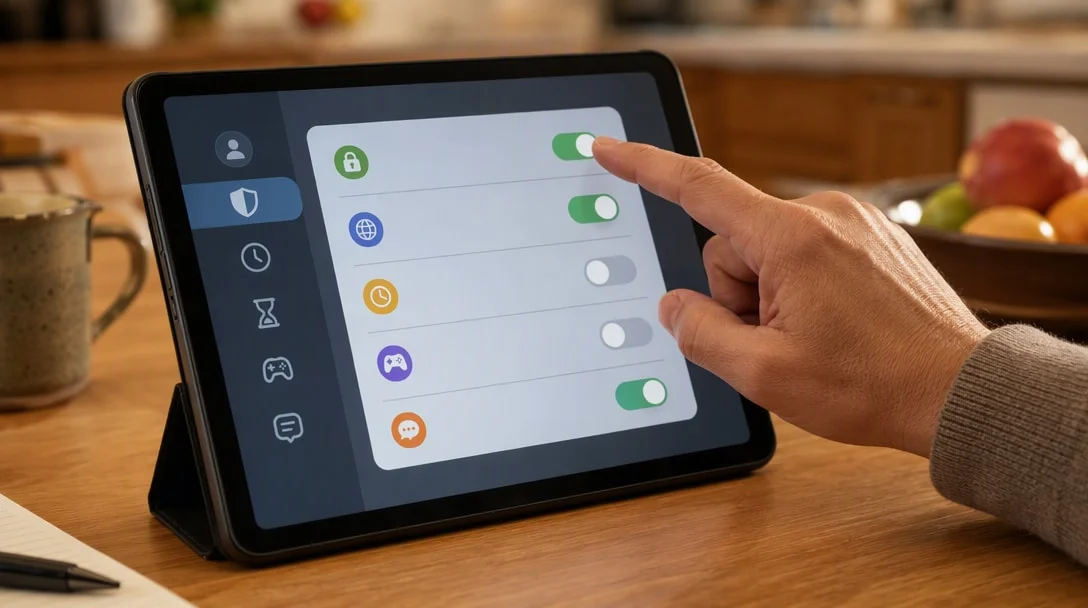
This guide to Roblox parental controls covers the concrete settings that actually matter. Roblox is one of the most popular platforms among younger players, and in our full Roblox review we flagged two real, ongoing concerns: the amount of personal data the app collects and shares, and inconsistent moderation across millions of user-made experiences. This guide is a practical follow-up — concrete steps parents can take to make a child’s account meaningfully safer, rather than just hoping the platform’s default settings are enough.
Table of Contents
Start With Roblox’s Own Age-Based Account Tools
The foundation of any Roblox parental controls setup starts here. Roblox offers dedicated account types — including Roblox Kids and Select Accounts — built around age-appropriate content and communication restrictions. Setting up a younger player’s account through these tools, rather than a standard account, is the single most effective starting point, since it changes what content and chat features are available by default rather than relying on you to manually restrict everything after the fact.
Roblox Parental Controls: Privacy Settings to Lock Down
The next layer of Roblox parental controls to set up is account privacy. Inside account settings, review and restrict:
- Who can contact your child: restrict friend requests and direct messages to “No One” or “Friends Only” rather than leaving them open to everyone.
- Who can see their profile and activity: limit visibility of what your child is playing and their online status.
- Location and personal info sharing: Roblox’s own data safety disclosure states the app may collect and share location and personal information — review what’s enabled and disable anything not essential.
Manage Voice and Text Chat
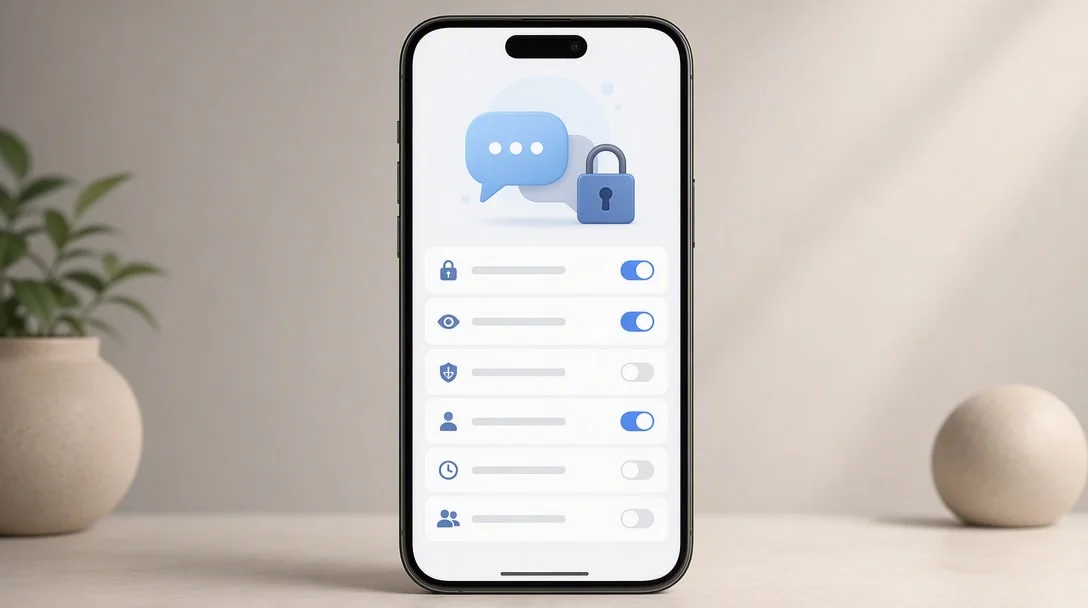
Chat settings are one of the highest-impact Roblox parental controls you can configure. Age-verified users can access real-time voice or text chat on Roblox. For younger players, consider disabling chat features entirely, or restricting them to a pre-approved friends list only. This single setting has an outsized effect on reducing exposure to inappropriate contact from strangers.
Set Spending Controls Before Handing Over the Account
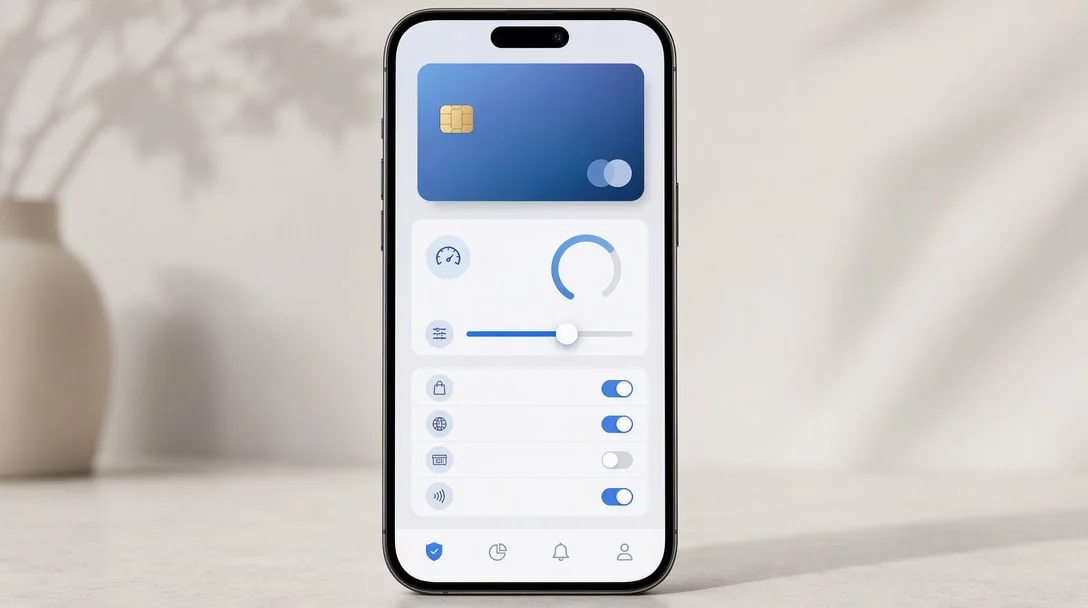
Robux purchases and Roblox Plus subscriptions are real-money transactions. Before your child starts playing:
- Remove saved payment methods from the device, or use platform-level parental controls like Google Family Link or Apple Screen Time to require your approval for purchases.
- Set a clear, agreed spending limit if you do allow purchases, and check in on it periodically rather than assuming it’s being followed.
- Talk through how in-game purchases work — many younger players don’t fully grasp that Robux represents real money until it’s explained directly.
Talk About What They Might Encounter
Because individual Roblox experiences are built by independent creators, moderation quality varies a lot — real player reviews specifically mention encountering inappropriate avatars and behavior from other users despite the platform’s formal safety systems. Rather than assuming filters will catch everything, have a direct, age-appropriate conversation about what to do if they see something uncomfortable: leave the experience, tell you immediately, and use the in-game report tool.
Use the Built-In Report and Block Tools
Make sure your child knows how to block and report another user directly from Roblox’s interface. Reporting genuinely feeds into Roblox’s moderation system, and normalizing it as a simple, non-scary action (rather than something to avoid or feel awkward about) makes kids more likely to actually use it when they need to.
Revisit Settings Periodically
For more on the platform’s broader creator and safety ecosystem, see our full Roblox creator economy guide. Roblox updates its safety tools and privacy options over time (its own materials note that data practices “may update over time”), and your child’s needs change as they get older. Treat this as an ongoing setup to revisit every few months, not a one-time checklist.
Age-Appropriate Guidance: What Changes as Kids Get Older
Roblox parental controls aren’t a one-size-fits-all setup — what’s appropriate shifts as a child gets older:
- Under 9: use the most restrictive settings available — no chat, no friend requests from strangers, and play only in the same room whenever possible. Consider whether Roblox is appropriate at all yet versus more tightly curated alternatives.
- 9–12: friends-only chat and contact settings are usually reasonable, paired with regular conversations about who they’re actually playing with and periodic spot-checks of their friends list.
- 13 and up: more independence is reasonable, but spending controls and open communication about reporting tools remain worth keeping in place — older kids are more likely to encounter mature content or aggressive monetization in specific experiences, not less.
These are general guidelines, not hard rules — you know your own child’s maturity level better than any generic age bracket does.
Warning Signs Worth Paying Attention To
A few patterns are worth checking in on if you notice them:
- Secretive behavior around the device specifically when playing Roblox, more than general normal privacy.
- Unfamiliar names appearing repeatedly in their friends list or chat history that you don’t recognize from school or existing social circles.
- Requests to move conversations off-platform to apps like Discord or Snapchat — a common pattern used to bypass Roblox’s own moderation and reporting tools.
- Unexplained Robux purchases that don’t match agreed spending limits.
None of these automatically mean something is wrong, but they’re worth a direct, non-accusatory conversation rather than being ignored.
What to Do If Something Goes Wrong
If your child does encounter something concerning — inappropriate contact, content, or behavior — a clear response plan helps:
- Use the in-game report and block tools immediately on the offending user or experience.
- Document what happened (screenshots, usernames, the experience name) before it’s lost, in case you need to escalate further.
- Contact Roblox support directly for serious incidents, rather than relying solely on the in-app report going through automated review.
- Talk with your child about what happened without making them feel at fault for reporting it — the goal is to keep them comfortable coming to you again.
Additional Roblox Parental Controls Worth Knowing About
Beyond Roblox’s own in-app settings, device-level and platform-level tools add another layer of oversight:
- Screen time limits through your device’s built-in tools (Google Family Link, Apple Screen Time, or console parental controls) can cap total daily playtime across all apps, not just Roblox.
- App store purchase approval settings, separate from in-game spending controls, add a second layer of friction before any real-money purchase goes through.
- Network-level filtering (router-based parental controls) can restrict access times or block specific domains at the Wi-Fi level, useful for shared household devices.
None of these replace the in-app Roblox parental controls covered above — they work best layered together rather than relying on any single tool alone.
Frequently Asked Questions
What age is Roblox rated for? Roblox is rated 12+ on the Play Store with a “Parental Guidance Recommended” note, though many younger children play with parental supervision and restricted settings.
Can I stop my child from chatting with strangers on Roblox? Yes, restrict friend requests, direct messages, and voice/text chat to “Friends Only” or disable them entirely in account privacy settings.
Can I limit how much my child spends on Roblox? Yes, remove saved payment methods, use platform parental controls to require purchase approval, and set clear spending expectations in advance.
Does Roblox moderate all its games? Roblox provides content filtering and dedicated safety teams, but with millions of user-made experiences, moderation quality varies — treat platform-level tools as a baseline, not a guarantee.
What’s the difference between Roblox Kids and Select Accounts? Both are age-based account types designed to restrict content and communication by default; check Roblox’s current account settings for the specific features each includes, as details can be updated over time.
Should I play Roblox with my child instead of just supervising remotely? Playing together, especially for younger or newer players, is one of the most effective Roblox parental controls in practice — it lets you see firsthand what experiences and interactions look like rather than relying only on settings.
Can I see my child’s Roblox chat history? Account-level visibility depends on the account type and settings configured; Kids and Select Accounts generally offer more parental oversight than a standard account.
Key Takeaways
- Set up dedicated Kids/Select account types rather than a standard account for younger players.
- Restrict chat and contact settings to Friends Only, or disable them entirely.
- Remove saved payment methods or require purchase approval before handing over the account.
- Talk directly with your child about reporting uncomfortable content — don’t rely on filters alone.
- Age-appropriate settings should evolve as your child gets older, not stay fixed at one configuration.
- Layer device-level and network-level controls on top of Roblox’s own settings for the strongest protection.