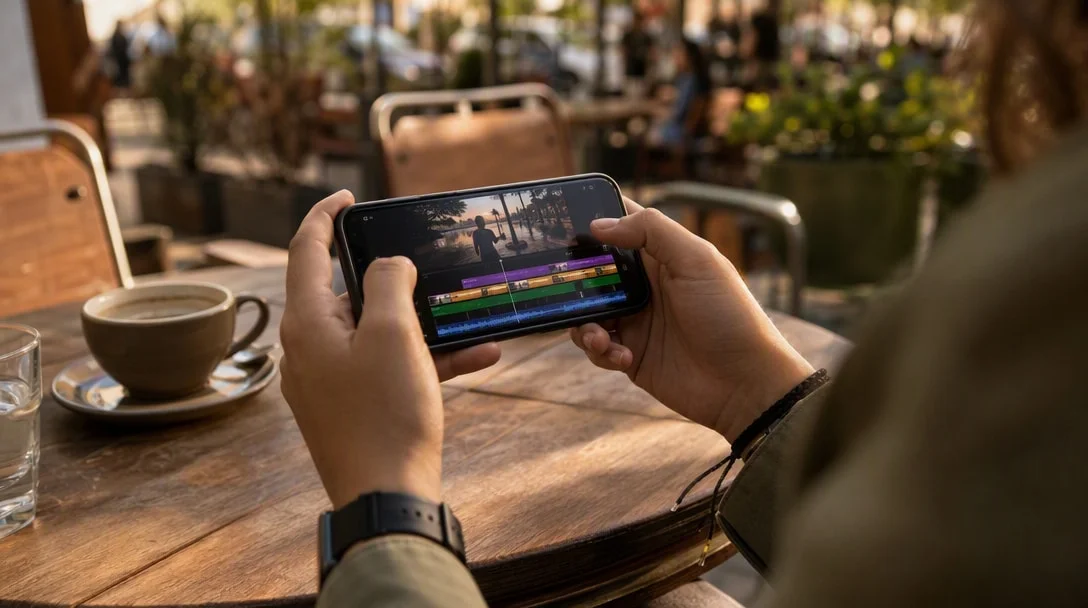
This InShot review looks at whether it’s the CapCut alternative you’re hoping for. If the ads and Pro-gated features in CapCut have pushed you to look for alternatives, InShot is usually the first name that comes up. It’s earned a 4.8-star rating from 24.6 million reviews and 500 million+ downloads as an all-in-one video and photo editor. This review looks at what InShot actually offers and how it stacks up directly against CapCut.
InShot Review: At a Glance
| Detail | Information |
|---|---|
| Developer | InShot Video Editor |
| Category | Photography / Video Editing |
| Rating | 4.8 / 5 (24.6M+ reviews) |
| Downloads | 500,000,000+ |
| Price | Free (contains ads and in-app purchases) |
| Content Rating | Rated for 3+ |
| Latest Update | September 21, 2026 |
What InShot Offers
InShot (official site) combines a full video editor with a genuinely capable photo editor and collage maker in one app — a broader scope than CapCut, which is primarily video-focused. Core tools include trim/merge, reverse video, keyframe animation, chromakey green-screen editing, picture-in-picture, speed ramping, and a color picker, alongside AI features like auto captions, automatic background removal, and smart object tracking for stickers and text.
Table of Contents
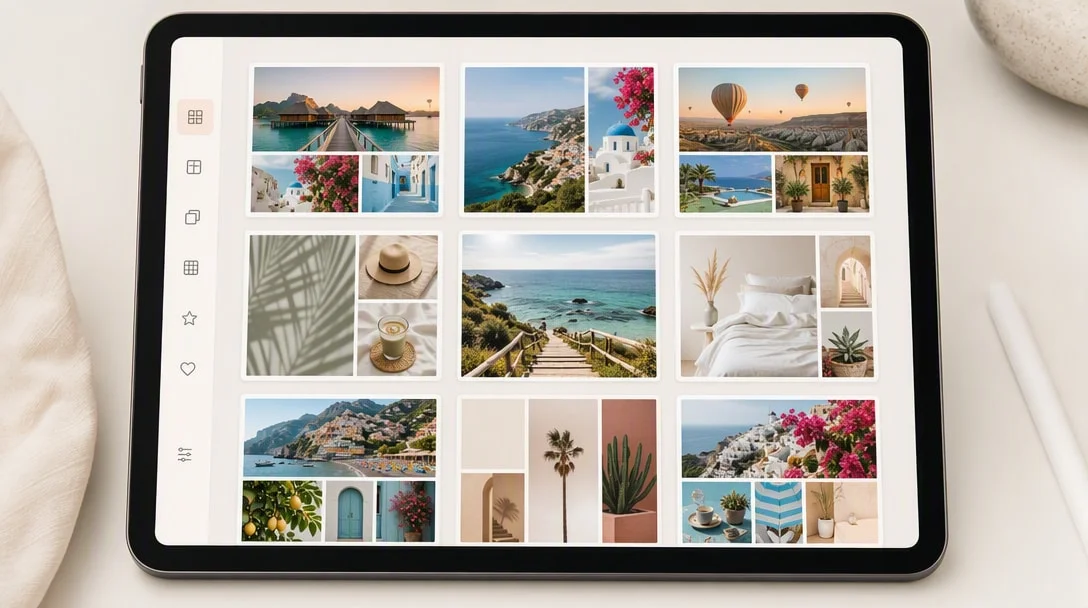
On the photo side, InShot adds background editing, multiple aspect ratios, over 1,000 stickers, and an easy collage maker — features CapCut doesn’t really compete on, since it’s built primarily around video.
That photo-editing depth is worth emphasizing in this InShot review specifically because it’s easy to overlook: most “video editor” apps treat photo tools as an afterthought, but InShot’s collage maker and photo filters are polished enough to replace a separate dedicated photo-editing app for casual use, which is a genuine convenience if you’re currently juggling multiple apps for photos and video separately.
InShot vs. CapCut: Direct Comparison
| Category | InShot | CapCut |
|---|---|---|
| Rating | 4.8 (24.6M reviews) | 4.2 (13M reviews) |
| Downloads | 500M+ | 1B+ |
| Photo editing | Full photo editor + collage maker | Limited, video-focused |
| AI tools | Auto captions, AI body effects, background removal | Auto captions, text-to-speech, AI video generation |
| Trending effects | Standard filter/effects library | Weekly-updated trending effects tied to social platforms |
| Export quality | Up to 4K 60fps | Up to 4K 60fps with smart HDR |
| Reported ad friction | Lower — ads mostly optional (watch-to-unlock) | Higher — ads reported around export flow |
What Users Like About InShot
A recurring theme across this InShot review’s research: the standout point in user reviews is that most features are accessible for free, with a subscription unlocking extras rather than gating core functionality — multiple long-time users specifically describe watching an ad to temporarily unlock a subscriber feature as a workable, non-intrusive alternative to paying. This is a materially different monetization approach than CapCut’s, where more tools sit permanently behind a Pro wall.
Where InShot Falls Short
No InShot review would be honest without covering the weak points: the most consistent complaint, even from reviewers giving high star ratings, is InShot’s built-in music library: users describe it as small (roughly 30–40 tracks) and not particularly good, forcing you to import your own music from elsewhere if you want quality soundtrack options. There’s also a real learning curve at first — several reviewers mention it took some experimentation to understand the interface before editing felt smooth.
Data Safety
InShot’s Play Store disclosure states it may share device or other IDs with third parties and collects personal info, photos and videos, and other data types — data collection roughly in line with what you’d expect from an app that processes your media directly. Data is encrypted in transit, and deletion can be requested.
Based on everything covered in this InShot review, here’s the honest breakdown:
Pros and Cons
Pros
- Combines full video editing and photo editing/collage tools in one app
- Higher rating and generally less intrusive ad model than CapCut, per user reports
- Watch-to-unlock ads offer a free path to subscriber features
- Strong AI tools: background removal, auto captions, smart tracking
Cons
- Built-in music library is small and considered low quality by users
- Steeper initial learning curve than some competitors
- Smaller download base and community than CapCut, meaning fewer tutorials/templates circulating online
- Some AI effects prioritize speed and fun over precise, professional-grade control
A Closer Look at InShot’s AI Tools
A closer look at the AI side of this InShot review: the app’s AI features are genuinely more useful than a marketing checkbox for most everyday editing. Auto Remove Background works on both photos and videos with a single tap, useful for quickly swapping out a busy background without a green screen setup. Smart tracking locks a sticker or text overlay to a moving subject in frame, which used to require manual keyframing in most free editors. AI Body Effects apply instant stylized presets to a subject, aimed more at quick social content than precise professional edits — think fast, fun results over frame-perfect control.
Tips for Getting Started
A few habits help new users get past InShot’s initial learning curve faster:
- Start with a photo collage or simple trim-and-export project before diving into multi-layer video edits, to get comfortable with the interface.
- Import your own music early given the limited built-in library — royalty-free music sites work well and avoid copyright strikes on social platforms.
- Use the watch-to-unlock option for subscriber features you only need occasionally, rather than subscribing immediately.
- Explore the Keyframes tool once comfortable with the basics — it’s one of InShot’s more powerful features and easy to overlook as a beginner.
How InShot Handles Updates and Support
InShot’s development team ships updates roughly every few weeks, typically mixing new AI features with bug fixes and stability improvements — its most recent September 2026 update added Audio Stickers and Group Edit for Tracks, both aimed at speeding up the editing workflow for creators managing multi-layer projects. The app also maintains direct support channels (email and a dedicated YouTube tutorial channel), and reviews suggest the developer actively reads and responds to feature requests, which explains why long-time users report the app “evolving” noticeably over several years of use.
Who Should Choose InShot?
Based on everything in this InShot review, InShot is the stronger pick if you regularly edit both photos and video, want a less ad-heavy free experience, or specifically want the option to unlock premium features by watching a short ad instead of paying. It’s a weaker fit if you’re editing exclusively for TikTok or Reels trends and want the newest AI video-generation tools first — CapCut tends to ship trend-focused features slightly faster given its larger user base and social media ties.
Frequently Asked Questions
Is InShot better than CapCut? The single most common question this InShot review gets — InShot generally scores higher on user ratings and is reported to have less intrusive ad placement, plus a stronger photo-editing toolset. CapCut has a larger community, weekly trending effects tied to TikTok/Reels culture, and newer AI video-generation tools. Which is “better” depends on whether you value photo editing and lighter ads (InShot) or trend-focused video effects and AI generation (CapCut).
Is InShot free to use? Yes, with ads and an optional subscription; many subscriber features can also be unlocked temporarily by watching an ad.
Does InShot add a watermark? InShot’s free exports are not watermarked.
Can InShot edit photos, not just video? Yes, it includes a full photo editor and collage maker alongside its video tools.
Does InShot support 4K export? Yes, InShot supports export resolutions up to 4K at 60fps.
Can I use InShot without a subscription? Yes, most features are accessible for free, and many subscriber-only extras can be temporarily unlocked by watching an ad instead of paying.
Is InShot good for beginners? It has a slightly steeper learning curve than some competitors according to user reviews, but starting with a simple project (like a photo collage) makes the interface easier to pick up.
Final Verdict
To close out this InShot review: it’s a genuinely strong CapCut alternative, and for users specifically frustrated by CapCut’s ad placement or Pro-gated features, it’s likely the better fit — its higher rating reflects a monetization approach more users seem to tolerate well. CapCut still wins on sheer trend-relevance and its newer AI video-generation tools. If you edit both photos and video regularly, InShot’s broader toolset makes it the more practical single-app choice.
One last practical note before you install: if you’re already deep into CapCut’s trending-effects workflow for social content, there’s no real reason to fully switch — many creators simply keep both apps installed and pick whichever fits a given project, since both are free and neither adds a watermark to exports. The switching cost is genuinely low, which makes InShot worth trying regardless of how attached you already are to CapCut.