If you want to save mobile data without giving up your favorite games and apps, start here. Mobile games and streaming apps can burn through a data plan fast, especially multiplayer titles and video-heavy apps. This guide covers practical, no-nonsense ways to cut your mobile data usage without giving up the apps you actually want to use.
Table of Contents
Know What’s Actually Using Your Data
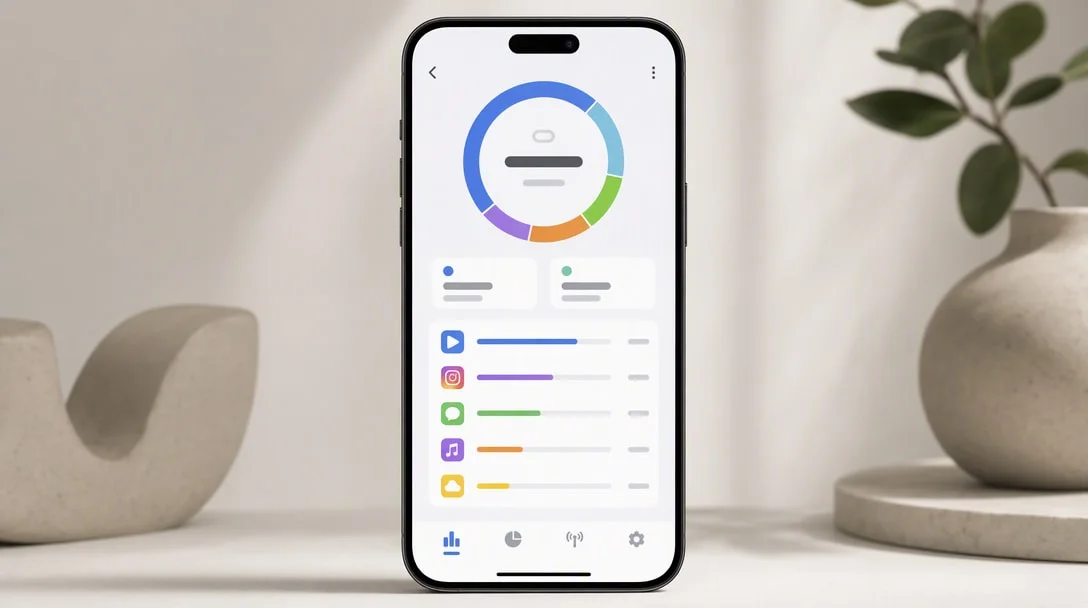
The first step to save mobile data is knowing where it’s actually going. On Android, check Settings > Network & Internet > Data Usage (see Google’s guide to reducing mobile data usage; menu names vary by phone maker) to see which apps consume the most; on iPhone, check Settings > Cellular. This tells you where to actually focus your effort instead of guessing.
How to Save Mobile Data While Gaming
- Download game assets over Wi-Fi: large games and updates should be downloaded or updated on Wi-Fi whenever possible — asset downloads are usually the biggest single data cost, not live gameplay itself.
- Lower in-game texture/graphics quality: many games let you reduce streamed texture quality, which can meaningfully cut ongoing data use during play, not just improve performance.
- Disable auto-play video ads on Wi-Fi only: some games let you restrict video ad loading to Wi-Fi connections in settings.
- Watch out for cloud save syncing: games with large save files or cloud backups can use more data than expected during sync — check if this can be restricted to Wi-Fi.
For Streaming and Video Editing Apps
- Lower streaming quality on mobile data: most video apps let you set a lower default resolution specifically for cellular connections.
- Download content on Wi-Fi for offline viewing: if an app supports offline downloads, use it before you’re relying on mobile data.
- Restrict background app refresh: video and social apps often preload content in the background — disabling background refresh for data-heavy apps stops this silent usage.
- Edit and export on Wi-Fi when possible: video editing apps like CapCut and InShot may sync assets or upload exports; doing heavy editing sessions on Wi-Fi avoids surprise data use.
For Social Media and Messaging Apps
- Disable auto-play video in social apps like Instagram, TikTok, and Facebook — auto-playing feeds are a major, often invisible source of mobile data use.
- Turn off auto-download for media in messaging apps like WhatsApp or Telegram, so photos and videos only download when you tap them.
- Reduce upload quality for photos/videos you share where the app allows it, since uploads count against your data plan just as much as downloads.
Common Mistakes That Waste Data Without You Noticing
A few habits quietly burn through data even for people who think they’re being careful:
- Leaving location services on for apps that don’t need them — some apps sync location-based data more frequently than expected in the background.
- Not checking pre-installed bloatware that syncs or updates in the background without ever being opened.
- Using mobile hotspot without a data cap warning set — tethering a laptop or tablet can burn through a plan far faster than phone use alone.
- Ignoring roaming settings when traveling, which can trigger much higher data costs or throttling depending on your carrier plan.
General Settings Worth Checking
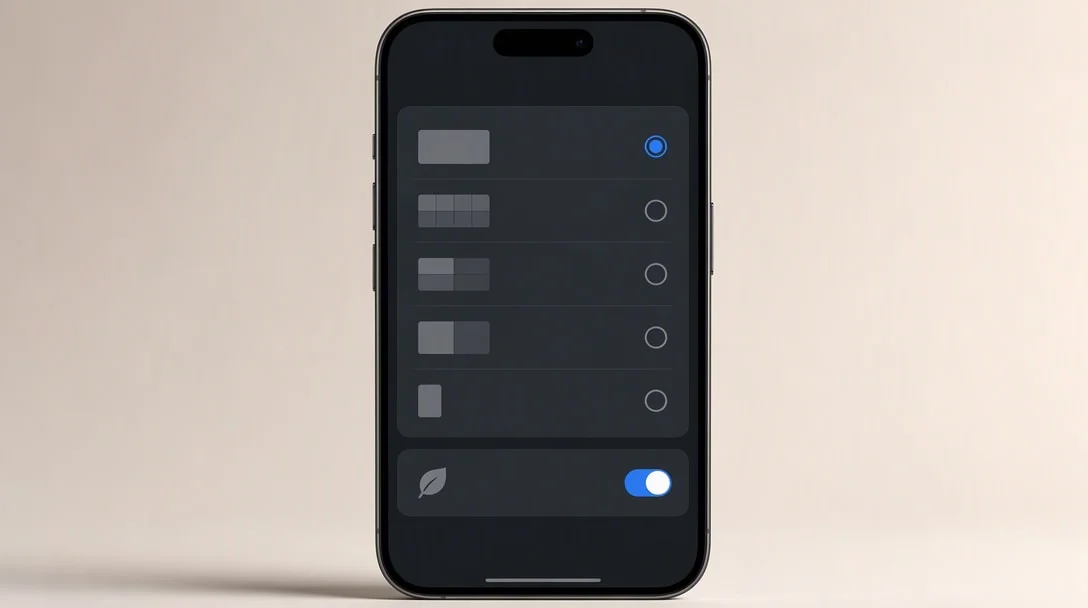
- Enable Data Saver mode (Android) or Low Data Mode (iPhone) system-wide, which restricts background data for most apps automatically.
- Set per-app mobile data limits where your OS supports it, so a single app can’t quietly consume your whole plan.
- Turn off auto-updates on mobile data in the Play Store/App Store settings, restricting app updates to Wi-Fi only.
Understanding How Much Data Common Activities Actually Use
Having a rough sense of data cost per activity makes it much easier to prioritize where to save mobile data:
- Casual mobile gaming (live matches): typically light, often just a few megabytes per hour for the actual gameplay data itself.
- Game downloads and updates: can range from tens of megabytes to several gigabytes depending on the title, making this the single biggest gaming-related data cost by far.
- Standard-definition video streaming: roughly several hundred megabytes to about a gigabyte per hour.
- HD video streaming: can use several gigabytes per hour, several times more than standard definition.
- Video calls: generally comparable to or higher than HD streaming, depending on resolution and call length.
These are rough ranges rather than exact figures, since they vary by app, compression, and video quality settings, but the pattern holds consistently: downloads and video are where data actually goes, not live gameplay or browsing.
When It’s Worth Upgrading Your Data Plan Instead
All the settings above genuinely help, but there’s a point where fighting your data plan stops being worth the hassle. If you regularly hit your limit despite following these steps, or find yourself constantly disabling features you actually want (like HD streaming or timely game updates) just to save mobile data, it may be more practical to compare unlimited or higher-cap plans from your carrier rather than permanently living with reduced quality settings. Data-saving habits are most valuable as a way to stretch a limited plan comfortably, not as a permanent workaround for a plan that’s genuinely too small for how you actually use your phone.
A Quick Weekly Routine to Stay on Top of Usage
Rather than only reacting once you’re near your limit, a brief weekly check helps you save mobile data proactively: glance at your data usage breakdown once a week to catch any app suddenly using far more than expected, confirm Data Saver or Low Data Mode is still enabled after any OS update (settings occasionally reset after major updates), and check for pending app or game updates you can queue up for the next time you’re on Wi-Fi rather than letting them download automatically over cellular. This takes under a minute once it’s a habit, and it catches problems — like an app that started auto-updating in the background — before they eat into your plan unexpectedly.
Frequently Asked Questions
Does playing a multiplayer game use a lot of data? Live gameplay itself is usually lighter than you’d expect; the bigger data costs are typically asset downloads, updates, and video ads.
Does Data Saver mode break apps? No, it typically just restricts background data use; foreground app use (actively playing or streaming) works normally.
Should I download games over mobile data if I’m in a hurry? You can, but large games and updates can be several gigabytes — waiting for Wi-Fi avoids a big chunk of your plan disappearing at once.
Does using a hotspot use more data than normal phone use? Not inherently more per byte, but tethering a laptop or tablet often means heavier usage overall (larger downloads, video calls, browsing), so it’s worth watching closely if your plan has a cap.
Will disabling auto-play video really save mobile data noticeably? Yes — auto-playing video feeds in social apps are one of the largest sources of passive data use for people who don’t realize how much they’re scrolling.
Is Wi-Fi calling a good way to save mobile data? Wi-Fi calling itself doesn’t directly save mobile data since calls typically don’t count against data plans either way, but it can help in areas with weak cellular signal without triggering extra data use from connection retries.
Key Takeaways
- Asset downloads and updates, not live gameplay, are usually the biggest data cost in gaming.
- Lowering streaming quality and enabling Data Saver/Low Data Mode are the highest-impact, lowest-effort changes.
- Restrict background app refresh for data-heavy apps to stop silent usage between sessions.
- Auto-play video in social apps and auto-download in messaging apps are common hidden data drains.
- If you’re constantly fighting your data plan despite these steps, it may be time to consider a bigger plan.