
Here’s how to fix mobile game lag, freezing, and random crashes without guesswork. Almost every mobile gamer runs into the same problem eventually: a game that ran fine last week suddenly stutters, freezes mid-match, or crashes right when it matters most. It happened to reviewers testing Roblox, and it’s one of the most common complaints about video editing apps like CapCut too. The good news: most lag and crashing issues come down to a small set of causes, and most are fixable in a few minutes without buying a new phone. This guide walks through the troubleshooting steps in the order you should actually try them.
Table of Contents
How to Fix Mobile Game Lag: Why It Happens First
Before troubleshooting, it helps to know what’s usually behind it:
- Insufficient device resources: too little free RAM or storage forces the app to work harder than it should.
- Background processes: other apps still running and competing for memory and processor time.
- Outdated software: an outdated app version or operating system missing performance fixes and compatibility updates.
- Overheating: phones throttle performance automatically when they get too hot, which shows up as sudden lag.
- Corrupted cache or data: temporary files that have become corrupted and cause instability.
- Network issues: for online games, an unstable connection can look identical to a performance problem.
- Poorly optimized content: especially on platforms like Roblox where individual experiences are built by third-party creators, quality varies a lot from one game to the next.
Quick Fixes Ranked by Effort
| Fix | Effort | Fixes |
|---|---|---|
| Restart the app | 10 seconds | Temporary glitches, minor memory leaks |
| Restart your phone | 1 minute | Background process buildup, memory pressure |
| Close background apps | 1 minute | RAM competition, general slowdown |
| Free up storage space | 5–15 minutes | Install failures, stutter, crashes on save/load |
| Update the app and OS | 5–20 minutes | Known bugs, compatibility crashes |
| Clear app cache | 1 minute | Corrupted temporary data, visual glitches |
| Lower in-game graphics settings | 1 minute | Frame drops, overheating-related throttling |
| Reinstall the app | 5–10 minutes | Persistent crashes after other fixes fail |
Step 1: Restart the App, Then Your Phone
It sounds obvious, but fully closing and reopening the app (not just backgrounding it) clears whatever temporary state caused the slowdown. If that doesn’t help, restart your phone entirely — this clears background processes and memory leaks that build up over days of uptime and are a surprisingly common cause of gradual slowdown.
Step 2: Close Background Apps
Every app running in the background competes for RAM and processing power. On Android, open your recent apps view and swipe away anything you’re not using; on iPhone, swipe up and pause on the app switcher to close unused apps. This matters most on devices with 3–4GB of RAM or less, which is common on budget phones.
Step 3: Free Up Storage Space
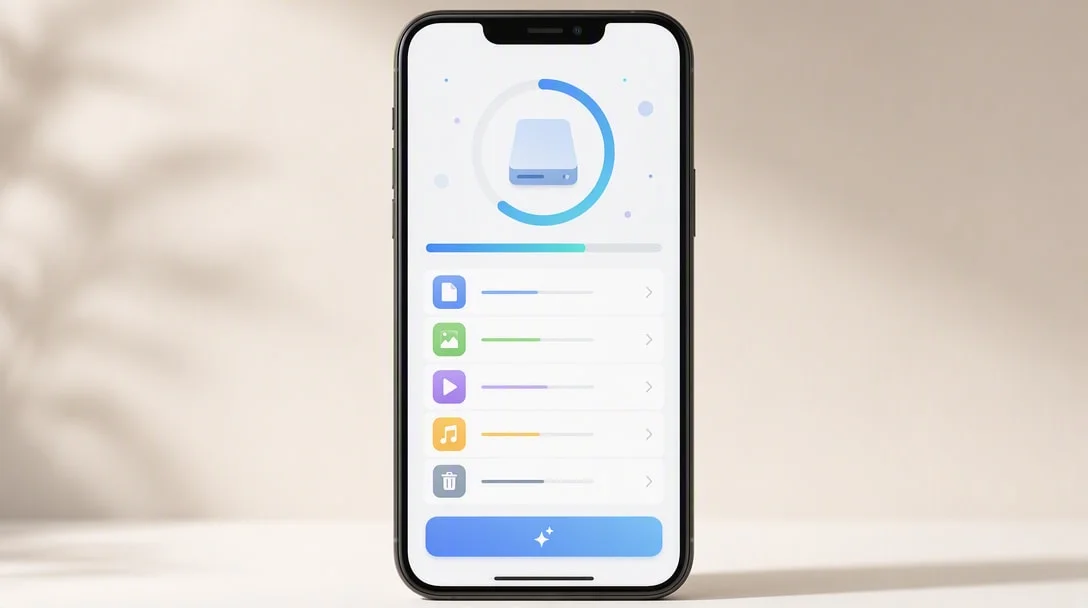
Many games and apps need free storage headroom to write temporary files, save progress, or cache assets — when your device is nearly full, this can cause stutter, failed saves, or outright crashes, not just slow installs. Aim to keep at least 10–15% of your storage free. Delete unused apps, offload old photos/videos to cloud storage, and clear downloaded files you no longer need — Google has its own guide to freeing up storage on Android if you want device-specific steps.
Step 4: Update the App and Your Operating System
Developers ship performance fixes and crash fixes constantly — an outdated app version is one of the most common, and most overlooked, causes of instability. Check the Play Store or App Store for pending updates, and make sure your phone’s operating system itself is current, since app updates sometimes assume a minimum OS version to work properly.
Step 5: Clear the App’s Cache
On Android, go to Settings > Apps > [App Name] > Storage > Clear Cache (avoid “Clear Data” unless you’re prepared to lose local settings or progress that isn’t cloud-saved). Clearing cache removes corrupted temporary files without deleting your account or saved progress, and it’s a common fix for visual glitches and random freezing.
Step 6: Lower In-Game Graphics Settings
If a specific game supports adjustable graphics quality, frame rate caps, or resolution scaling, lowering these settings reduces the load on your device’s processor and graphics chip, which directly helps with both lag and overheating-related throttling. This is especially effective on mid-range and older phones running newer, more demanding games.
Step 7: Manage Overheating
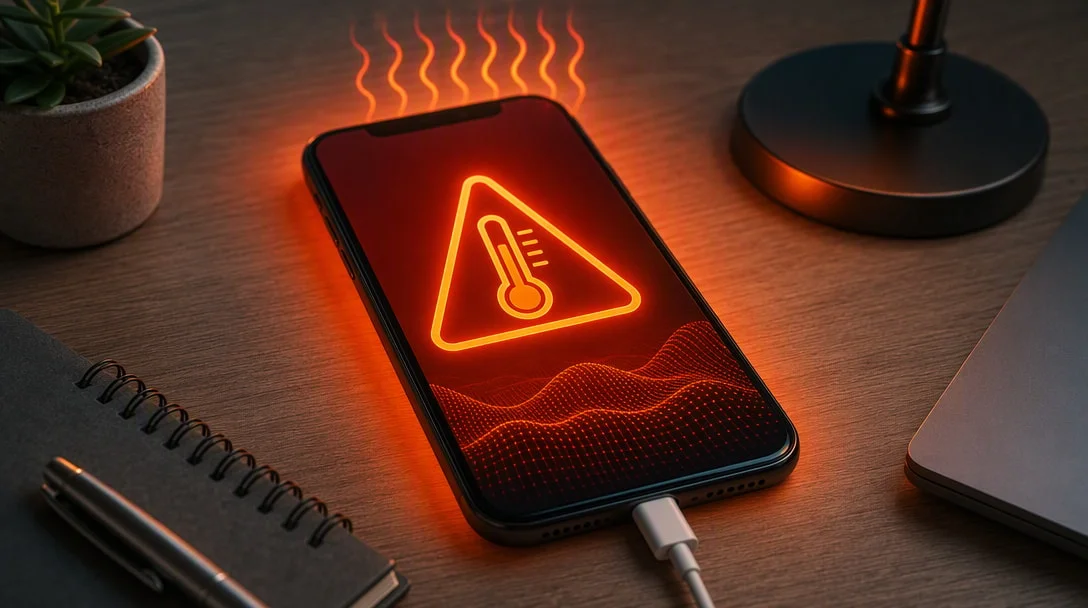
If your phone gets noticeably hot during play, performance will drop as the device automatically throttles itself to protect its hardware. Remove thick phone cases while playing, avoid direct sunlight, and give your device breaks during long sessions, especially in hot weather or while charging (charging while gaming generates extra heat).
Step 8: Check Your Network Connection
For online multiplayer games, what feels like lag is often a network problem, not a performance one. Switch between Wi-Fi and mobile data to see if one is more stable, move closer to your router, and close other devices or apps hogging bandwidth (large downloads, video streaming) while you play.
Step 9: Reinstall the App
If you’ve worked through every step above and still can’t fix mobile game lag or crashing, uninstall and reinstall the app. This replaces any deeper corrupted files that a simple cache clear won’t touch. Before doing this, make sure your progress is tied to an account (rather than only stored locally) so you don’t lose it — most major games and apps support account-linked cloud saves specifically for this reason.
When It’s Not Your Device’s Fault
Sometimes you can’t fix mobile game lag yourself because the problem genuinely isn’t on your end. On platforms with user-generated content like Roblox, individual experiences are built by third-party creators with wildly different levels of optimization — a poorly built game can lag even on a high-end phone. Similarly, apps mid-rollout of a new update sometimes ship bugs that get patched within days. If a specific game or app is lagging for a lot of other players too (check its reviews or official social channels), the fix may simply be waiting for a patch rather than anything on your device.
Frequently Asked Questions
Why does my phone lag on one game but not others? If you’re trying to fix mobile game lag on a specific title only, This usually points to that specific game being more demanding or less optimized, rather than a general device problem — try lowering its graphics settings first.
Does clearing cache delete my game progress? No, clearing cache removes temporary files only. “Clear Data” is different and can remove local settings or progress that isn’t saved to an account — avoid that unless you’re prepared to lose unsynced progress.
Why does my phone overheat when gaming? Sustained high processor and graphics use generates heat faster than light app use. It’s normal to an extent, but excessive heat will trigger automatic performance throttling.
Will a factory reset fix persistent crashes? As a last resort to fix mobile game lag that nothing else resolved, It can, since it removes all accumulated background issues, but treat it as a last resort after trying the steps above, and back up your data first.
How much free storage should I keep on my phone? Aim for at least 10–15% free space at all times for smoother performance, more if you regularly install large games.
Most of the time, you can fix mobile game lag with the free steps above before assuming your device is the problem.
Key Takeaways
- Start with the easiest fixes first: restart the app, then your phone, before anything more involved.
- Low storage space and outdated software are two of the most common, most overlooked causes of lag and crashes.
- Lowering in-game graphics settings is one of the most effective single fixes for both lag and overheating.
- Some performance issues genuinely aren’t your device’s fault — poorly optimized content or a buggy update can affect everyone.